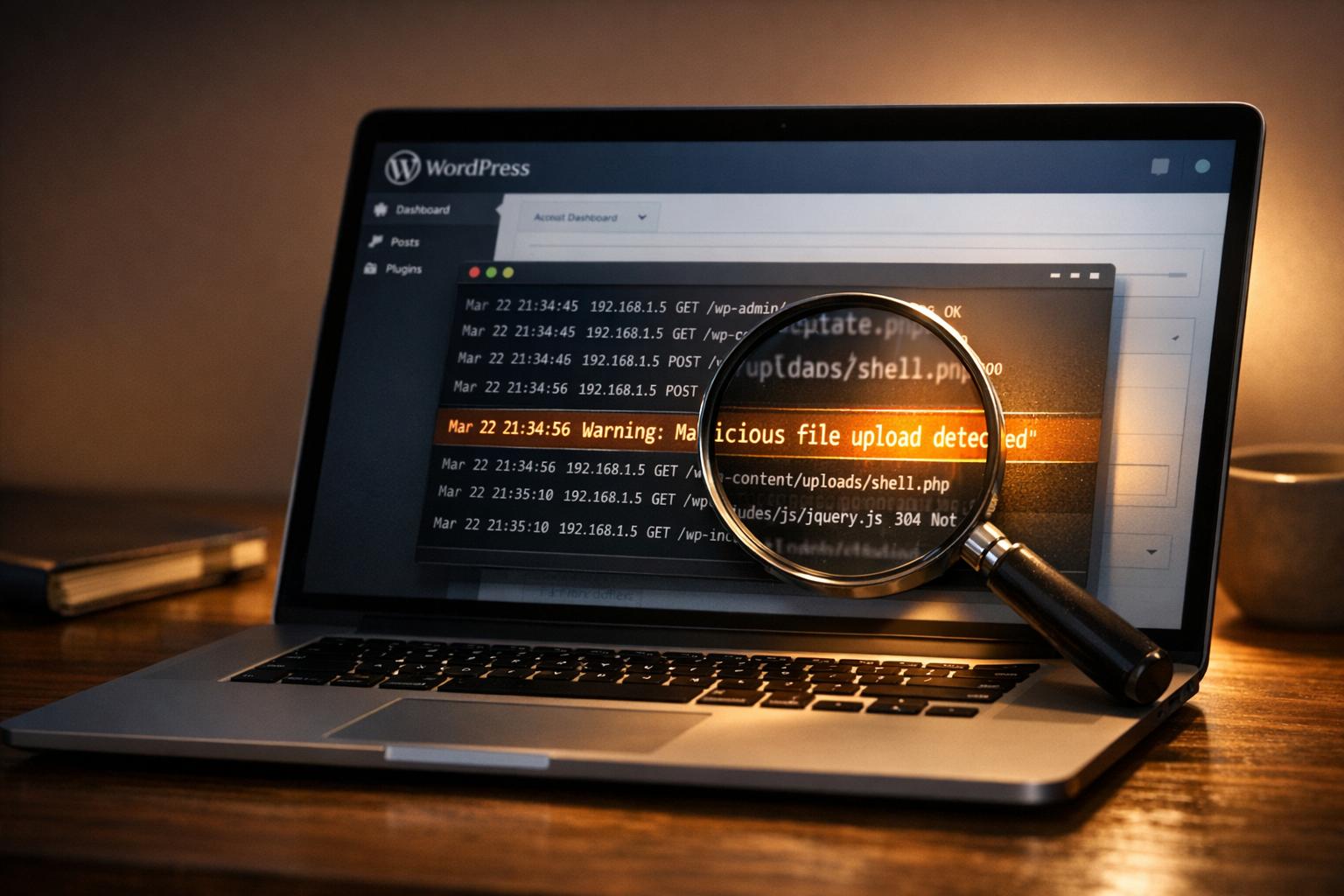


Your WordPress theme could be hiding malicious code, putting your site and users at risk. Hackers often exploit themes to steal data, redirect visitors, or damage your online presence. Recognizing these threats and addressing them promptly is crucial to maintaining your site’s security. Here’s a quick guide to spotting suspicious code:
- Red Flags in Code: Look for functions like
eval(),base64_decode(),gzinflate(), and hidden scripts or iframes pointing to unknown domains. - Common Targets: Focus on files like
functions.php,header.php,footer.php, andindex.php. - Manual Reviews: Automated tools can miss hidden threats. A manual review lets you spot obfuscated or unusual code patterns.
- Backup First: Always create a full backup before inspecting or modifying files.
- Compare Files: Use tools to compare your theme files with their original versions to identify unauthorized changes.
To protect your site, combine regular manual inspections with automated security tools. If you’re unsure or find complex issues, professional help is a wise choice.
How to Scan Your WordPress Site for Malicious Code – WordPress Security
Spotting Suspicious Code Patterns
Identifying malicious code in WordPress themes can feel like searching for a needle in a haystack. Hackers often use clever techniques to hide harmful scripts, so knowing what to watch for is crucial to protecting your website.
Common Code Hiding Techniques
Hackers rely on obfuscation – methods that make malicious code hard to read and understand. They often use specific PHP functions to disguise their scripts, making them appear harmless at first glance.
One of the most common methods is Base64 encoding, which turns malicious code into a long, random-looking string of characters. You’ll often see it paired with base64_decode(''), like this:
eval(base64_decode('aWYoZnVuY3Rpb25fZXhpc3RzKCdvYl9zdGFydCcpKSB7IGV2YWwoJG9iX3N0YXJ0KCkpOyB9')); Another major warning sign is the eval() function, which executes code dynamically. When combined with Base64 encoding, it becomes a powerful way for attackers to hide malware.
Other functions to watch for include gzinflate(), str_rot13(), and preg_replace with the /e modifier. While these functions have legitimate uses, hackers frequently misuse them to conceal malicious code. If you find these functions in unexpected places or paired with suspicious parameters, it’s a strong clue that something isn’t right.
Recognizing these obfuscation techniques is a key step toward spotting hidden threats in your WordPress theme files.
Warning Signs in Theme Files
Beyond encoded scripts, there are other clear indicators of tampering in your theme files. These often show up in critical files like functions.php, header.php, footer.php, and index.php.
Script and iframe tags pointing to unknown external domains are a major red flag. For example:
<script src="http://malicious-site.com/malware.js"></script> <iframe src="http://bad-domain.com"></iframe> These tags can inject harmful content from remote servers or create hidden frames that steal user data.
Another red flag is error reporting suppression, where hackers use the @ symbol or error_reporting(0) to hide malicious activity from error logs. While legitimate themes might suppress errors in some cases, excessive use of these techniques, especially around suspicious code, warrants closer inspection.
Keep an eye out for unexplained changes in your theme files. This includes new files with random or misleading names, modified timestamps on existing files, or files that have grown significantly in size without a clear reason.
In December 2024, Sucuri identified a large-scale attack where hackers injected malicious JavaScript into the
functions.phpfile of thousands of WordPress themes. The code, used to redirect visitors to phishing sites, was hidden usingbase64_decodeandeval.
Be especially cautious of dangerous PHP functions like exec, system, assert, or shell_exec. These can execute system-level commands and are rarely, if ever, needed in standard WordPress themes.
The numbers emphasize the risk: WordPress made up 96.2% of all CMS infections in 2022, with vulnerabilities in themes and plugins being a primary entry point. A 2023 MalCare report found that over 70% of hacked WordPress sites contained malicious code hidden in theme or plugin files.
Hackers are constantly improving their methods, using layered encoding and chained functions to avoid detection. They may even use legitimate-looking function names or comments to disguise their intentions. This growing sophistication highlights the importance of manual code reviews, as automated tools may not catch these advanced techniques.
Getting Ready for Manual Code Review
Manual code reviews are excellent for uncovering hidden threats, but they require careful preparation to ensure your site stays secure. Before diving into the review process, take steps to protect your live site and valuable data.
Back Up Your Website
A full backup is your safety net during a manual review. It ensures you can restore your site if anything goes wrong. According to a 2023 Sucuri report, 36.7% of infected WordPress sites had issues tied to themes or plugins, highlighting the importance of backups before inspecting your code.
You can use trusted backup plugins or your hosting provider’s built-in tools. If you prefer manual control, most hosting providers offer backup options through cPanel. Simply navigate to the File Manager, download all files from your public_html directory, and export your database using phpMyAdmin.
When naming your backup files, follow the American date format for clarity: for example, backup-11-24-2025.zip. This makes it easy to identify the most recent backup when time is of the essence. Store your backups in multiple locations, such as an external hard drive or a cloud service, to ensure you can recover your site even if your hosting account is compromised.
Once your backup is complete, you’re ready to set up a safe testing environment.
Create a Test Environment
Never work directly on your live site. Instead, create a staging environment – a private, identical copy of your site where you can safely inspect and modify files without disrupting visitors or risking downtime.
Many hosting providers offer built-in staging options, or you can use a plugin like WP Staging to set one up easily. If you’re comfortable with technical tasks, you can manually create a staging environment by setting up a subdomain (e.g., staging.yoursite.com) and copying your site’s files and database to this location.
The main advantage of a staging environment is that it isolates your changes. While your live site continues to serve visitors and process transactions, the staging site remains hidden from search engines and the public. Any errors – like deleting the wrong file or introducing syntax issues – won’t impact your live site’s functionality or revenue.
With a backup and staging site ready, you can now download and organize your theme files for review.
Download Theme Files
Preparation is key to identifying suspicious code while keeping your live site safe. WordPress themes are stored in the /wp-content/themes/ directory, and you can access them in several ways.
For beginners, cPanel’s File Manager is the easiest option. Log into your hosting account, open File Manager, and navigate to public_html/wp-content/themes/. Right-click on the theme directory, select "Compress", and download the resulting ZIP file. If you’re more experienced, you can use an FTP client like FileZilla. Connect using your SFTP credentials and locate the themes directory for greater control.
To stay organized, create folders on your computer with clear labels like Original-Files, Modified-Files, and Suspicious-Code-Samples. You can also name your main folder something like WordPress-Theme-Review-11-24-2025 for easy reference.
Before opening any files, scan them with a reliable antivirus program. While this won’t catch WordPress-specific malware, it adds an extra layer of protection against known threats. Always use SFTP or FTPS when transferring files to keep your data secure. Keep the original downloaded files untouched in a separate folder – these clean copies will be crucial for comparison if you discover altered code during your review.
How to Review Code Step by Step
Once your files are organized, it’s time to dive into the review process. This step is all about carefully examining your theme files for any irregularities. While automated scanners are helpful, manual reviews are essential for catching threats that might slip through. It’s worth noting that themes and plugins account for over 60% of website infections.
Checking Main Theme Files
Start by focusing on the critical files where hackers often hide malicious code. PHP files should be your top priority, especially functions.php, header.php, footer.php, and index.php. These are frequent targets for harmful injections.
Begin with functions.php, a common spot for backdoors. Watch for suspicious PHP functions like base64_decode, eval, gzinflate, str_rot13, and preg_replace with the /e modifier. These functions are often used to disguise malicious code. A clean functions.php file will have straightforward, readable code designed for theme features or customizations.
Here’s an example of what malicious code might look like:
<?php eval(base64_decode('aWYoJ...')); ?>– an obfuscated PHP backdoor.
Next, review JavaScript files for injected scripts. Be on the lookout for functions like document.write, eval, or script tags that link to unknown domains. According to Jetpack, script and iframe injections are some of the most common malware types found in WordPress theme files. Pay extra attention to JavaScript that loads external resources or creates hidden elements.
Don’t forget to check CSS files. Look for suspicious @import rules, background images from untrusted sources, or unusual CSS properties that could hide malicious elements or iframes.
Another useful step is sorting files in your theme directory by modification date. Attackers sometimes alter timestamps to conceal their activities, so recent changes might indicate tampering.
Finally, verify all file modifications to ensure no unauthorized changes have been made.
Finding Unauthorized Changes
To identify unauthorized changes, compare your current theme files with the original, unaltered versions from a trusted source. This comparison can reveal exactly what’s been added, removed, or modified since installation.
Use tools like Meld, Beyond Compare, or the command-line diff to compare files. These tools highlight differences line by line, making it easier to spot even minor changes that could be harmful.
Watch for out-of-place code, hidden iframes, or external links that weren’t part of the original theme. For instance:
<iframe src="http://spam-site.com" style="display:none"></iframe>.
In more advanced attacks, malware might blend into core theme files rather than adding new ones. This makes side-by-side comparisons even more crucial.
When you identify any anomalies, document them immediately.
Recording and Fixing Problems
Keep a detailed record of anything suspicious, including the file name, line number, and a snippet of the questionable code. A simple spreadsheet can help you stay organized, with columns for the file path, line number, code snippet, and your notes. This documentation will be useful if you need to consult a WordPress security expert.
Take screenshots of suspicious code, ensuring the file name and line numbers are visible. Also, note the date and time of your findings in MM/DD/YYYY format, such as "Reviewed on 11/24/2025 at 2:30 PM EST."
Only remove code if you’re confident it’s malicious. If you’re unsure, it’s safer to replace the entire file with a clean version from the original theme package rather than editing individual lines.
For complex or heavily obfuscated code – or if your site has already been compromised – it’s a good idea to seek help from a WordPress security expert. Malware often uses techniques like base64 encoding and gzinflate to evade detection, making professional assistance invaluable in challenging cases.
Lastly, keep a separate folder with your original downloaded files as a clean backup. These can serve as a reference during the review process and ensure you can restore important code if needed.
sbb-itb-976b402
Comparing Files with Original Versions
Once you’ve documented any suspicious findings, the next step is to compare your current theme files with their original, untouched versions. This comparison helps pinpoint what’s been added, removed, or altered since installation, making it easier to separate legitimate updates from potentially harmful changes. With your suspicious findings in hand, the first task is to secure clean versions of the theme files.
Finding Original Theme Files
To ensure an effective comparison, you’ll need authentic theme files from trusted sources. Avoid downloading themes from unofficial or third-party websites, as these often distribute "nulled" or pirated versions riddled with malware, spam links, or hidden backdoors.
For free themes, the safest place to download is the official WordPress Theme Repository at wordpress.org/themes. Simply search for your theme by name and download the latest version directly from there.
For premium themes, log in to the account you used to purchase the theme on the developer’s official website. Most reputable developers provide a customer portal where you can access the latest version of your theme. If you’ve lost access to your account, reach out to the developer’s support team for help. Be cautious of "free" versions of premium themes offered on other sites – they’re almost always compromised.
Once you’ve downloaded the original theme files, save them in a separate folder with a clear label, like Clean_Theme_Files_11-24-2025. This organization will make it easier to reference the files during the comparison process.
Tools for Comparing Files
Several tools can simplify the task of comparing your current theme files to the original ones. Here are some options suited to different needs:
- Desktop Tools: For detailed, side-by-side comparisons, desktop tools are a solid choice. For example:
- WinMerge (free, Windows): Highlights folder and file differences visually, making it easy to spot changes.
- Meld (free, Linux and Windows): Offers two- and three-way file comparisons for added flexibility.
- Beyond Compare (paid, cross-platform): Provides advanced comparison and merging features.
To use these tools, place your current theme files (from
wp-content/themes/your-theme-name) and the original files in separate folders. Load both folders into the tool, and review the highlighted differences. - Online Tools: For quick, file-by-file checks, online diff tools like Diffchecker are helpful. You can paste code snippets or upload files to see instant differences. However, these tools are less practical for entire theme folders.
- Integrated Development Environments (IDEs): Many IDEs, such as Visual Studio Code, include built-in diff features that allow you to compare files directly within the editor.
- WordPress Security Plugins: Plugins like Wordfence can automatically scan and compare your theme files against known originals. While these scans may not be as detailed as manual comparisons, they provide ongoing monitoring and real-time alerts for file changes.
When reviewing files, pay close attention to core theme files where malicious code often hides, such as functions.php, header.php, footer.php, and index.php. Look for signs like unexpected new files, altered code, suspicious functions (e.g., eval or base64_decode), or references to unknown external domains.
Document any differences, especially if they involve obfuscated code or unfamiliar scripts. If you’re unsure about a change, it’s best to replace the affected file with the clean version to eliminate any risks.
When to Get Professional Help
While manual reviews can uncover many code issues, some problems are just too complex to handle on your own. Knowing when to bring in an expert can save you time, prevent further damage, and ensure your website is fully cleaned and secured.
Signs You Need Expert Help
There are several clear signs that it’s time to call in a professional:
- Recurring malware infections: If malware keeps coming back after removal, you might be facing a sophisticated attack with hidden backdoors or multiple entry points. According to industry reports, over 70% of WordPress sites scanned by security companies have at least one vulnerability.
- Obfuscated code: Encountering heavily obfuscated code (like base64_decode, eval, gzinflate, or preg_replace) that you can’t make sense of is a strong indicator that expert help is needed.
- Search engine blacklisting or loss of admin access: These issues suggest attackers have gained deep control over your site, possibly through compromised core files or database infections. Such situations often require more than just a surface-level cleanup.
- Limited technical skills: If you’re not familiar with PHP, JavaScript, or the structure of WordPress files, attempting a manual fix could create additional vulnerabilities instead of solving the problem.
If any of these situations apply, reaching out to a specialist can ensure a thorough and effective cleanup.
How WP Support Specialists Can Help
When manual efforts aren’t enough, professional services can step in to handle even the most complex malware issues. WP Support Specialists offers a range of expert security solutions designed to get your site back on track.
Their malware removal service is designed to handle infections of any complexity. As they state:
WP Support Specialists will fix any kind of malware infection on your WordPress site and remove any malicious code that has been placed there by attackers.
For a deeper look at your website’s vulnerabilities, their security audit service provides a comprehensive assessment. According to their team:
Our WordPress Security Audit examines, detects, and provides a fully detailed report looking at the many potential vulnerabilities which may exist within your WordPress website.
For urgent situations, they offer an emergency fix service with round-the-clock support and a rapid 2-hour response time. They promise:
Never fear – WP Support Specialists offer 24/7 Support with a 2 Hour Response Time. Whether it’s WordPress Plugin or Core System Updates gone wrong, Removing Malware, or Crashed Sites – if it’s broken, we’ll fix it!
The cost of professional malware removal typically ranges from $99 to $300 per incident, which is a small price to pay compared to the losses caused by extended downtime or damage to your reputation.
Malware can have devastating effects on websites. As WP Support Specialists put it:
We know how dangerous malware can be because we help our clients recover their sites from these attacks every single day.
When your website is critical to your business, turning to professionals isn’t just a good idea – it’s a necessity.
Conclusion: Keeping Your WordPress Website Secure
Spotting suspicious code in WordPress themes plays a crucial role in safeguarding your website. Manual code reviews are an important part of a well-rounded security plan, helping you catch threats that automated tools might overlook – especially when dealing with newly developed or hidden malware.
Reports indicate that WordPress themes and plugins are responsible for most CMS infections. This highlights the importance of inspecting your themes regularly. Make it a habit to review your themes at least every quarter or right after any updates.
It’s always cheaper – and less stressful – to prevent issues than to fix them afterward. Proactive steps like disabling file editing in your WordPress dashboard, setting strong user permissions, and maintaining regular backups create multiple layers of defense. These measures make your site a less appealing target for attackers.
For the best protection, combine the power of automated tools with manual reviews. While security plugins are great at identifying known threats, your own careful inspections can catch suspicious changes and patterns that might slip past automated scans. This two-pronged approach ensures stronger protection against both common vulnerabilities and more advanced threats.
The benefits of staying proactive go beyond avoiding malware. You’ll see improvements in site reliability, search engine rankings, and customer trust, all while minimizing downtime.
Start with the basics: only use themes from trusted sources, keep your site updated, back up your files regularly, and perform frequent inspections. Over time, you’ll develop a sharper eye for spotting potential risks before they turn into major problems.
Think of your WordPress site as a key part of your business. Protecting it with the same care you’d give to a physical storefront isn’t just a good idea – it’s essential for thriving in today’s digital world.
FAQs
How can I spot suspicious or malicious code in WordPress theme files?
Suspicious code in WordPress theme files often stands out due to patterns or elements that seem out of place or unauthorized. Here are some common red flags to keep an eye on:
- Encrypted or obfuscated code: Watch for strings packed with random letters, numbers, or symbols. These are often used to disguise malicious scripts.
- Unknown external links or URLs: Code that connects to unfamiliar domains or external servers could signal unauthorized changes.
- Frequent use of risky functions like
eval()orbase64_decode(): These functions are commonly associated with hidden or harmful code execution. - Unexpected file changes: Pay close attention to edits in critical files like
functions.php, especially if you didn’t make them yourself.
When in doubt or if the issue feels overwhelming, seeking help from a professional WordPress security expert can make all the difference in identifying and removing potential threats.
How can I manually check my WordPress theme for suspicious or malicious code?
To check your WordPress theme for any suspicious code, you can start by accessing the theme files through your WordPress dashboard or using an FTP client. Focus on critical files such as functions.php, header.php, and footer.php. Be on the lookout for anything unusual, like long strings of random characters, the use of eval() functions, or unexpected external links that don’t seem to belong.
If you’re not confident in spotting malicious code or need extra help, it’s a good idea to consult professionals who specialize in WordPress security and malware removal. Conducting regular security audits is another smart way to keep your site protected.
When should I hire a professional to handle suspicious code in my WordPress theme?
If you’re not confident about identifying or removing malicious code from your WordPress theme, bringing in a professional is often the safest route. Trying to resolve the issue on your own without the right skills can unintentionally create more security vulnerabilities or even harm your website.
Experienced professionals, such as WP Support Specialists, have the knowledge and tools to carefully examine your theme files, remove any threats, and ensure your site stays secure and fully operational. This not only saves you time but also gives you the reassurance that your website is being handled by experts.