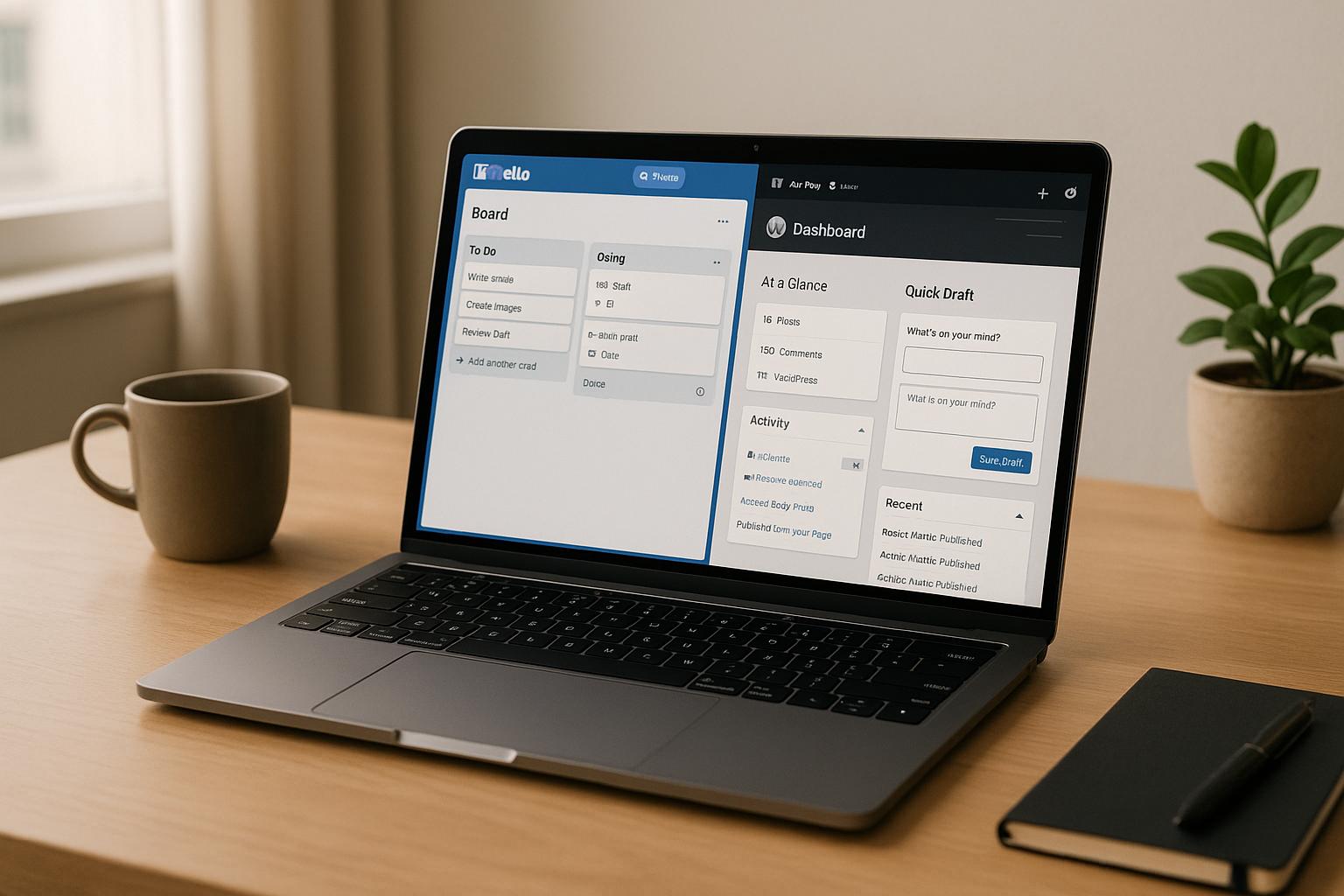


If you’re managing tasks in Trello and publishing content in WordPress, connecting the two can save time and reduce manual work. By integrating these platforms, you can automate workflows, share real-time project updates, and improve team collaboration. Here’s how:
- Automations: Use tools like Zapier to automatically create Trello cards when a WordPress post is published or vice versa.
- Embedding Trello Boards: Display Trello boards on WordPress pages using simple iframe embeds for real-time updates.
- Plugins: Install plugins like "WP Post Integrations with Trello" to sync tasks and posts directly.
You’ll need admin access to your WordPress site, a Trello account, and optional tools like Zapier or n8n for automations. This guide covers simple and advanced methods to connect Trello and WordPress, troubleshoot issues, and optimize workflows for any team size.
How to use Trello for WordPress website project management
What You Need Before Starting
Before connecting Trello with WordPress, make sure you have all the necessary accounts, tools, and a basic understanding of how both platforms work.
Required Accounts and Access
First, you’ll need an active self-hosted WordPress site with administrator-level access. This allows you to install and manage plugins, adjust settings, and edit content. Keep in mind that WordPress.com’s free tier doesn’t support plugins, so you’ll need a self-hosted WordPress.org setup.
On the Trello side, ensure your account has the ability to create boards, lists, and cards, as well as integrate with external tools. Trello’s free plan supports unlimited cards and up to 10 boards per workspace, which is usually enough for small to mid-sized WordPress projects. Additionally, make sure you have admin or owner access to the Trello workspace and boards you want to connect.
If you’re using an automation platform like Zapier, confirm that you have login credentials and the ability to authorize connections for both WordPress and Trello. Zapier’s free plan offers limited tasks, but more advanced automations typically start at about $20/month in the U.S.
Lastly, check that your WordPress hosting setup and security plugins aren’t blocking outgoing API requests. Since these integrations rely on HTTP calls to sync data, you might need to adjust firewall settings or consider a managed WordPress hosting plan for smoother performance.
Tools and Plugins You’ll Need
The tools you’ll use depend on how you want to connect Trello and WordPress. Here are three main approaches:
- Dedicated WordPress plugins: Plugins like Bit Apps’ "WP Post Integrations with Trello" let you sync tasks and posts directly in WordPress. Similarly, Kanban-style plugins can bring Trello-like boards into your WordPress dashboard. These solutions often require a subscription but may offer free trials or basic plans.
- Automation platforms: Tools like Zapier and n8n allow you to create workflows without coding. For example, you can automate the creation of Trello cards from new WordPress posts. Zapier is user-friendly and connects WordPress to over 7,000 apps. n8n, on the other hand, is open-source and gives you more control, whether self-hosted or cloud-based.
- Embedding Trello boards: For a simple, free option, you can append ".html" to your Trello board link and embed it in a WordPress HTML block. This method provides read-only access and depends on your board’s visibility settings.
If you’re converting form submissions into Trello cards, you’ll need plugins like WPForms (with its Zapier add-on) or Ninja Forms, along with the necessary API credentials. These integrations often require a paid license for full functionality.
Basic Knowledge Requirements
You don’t need to be a tech expert, but some familiarity with WordPress and Trello will make the process smoother. On the WordPress side, you should know how to install plugins, navigate the admin dashboard, create posts or pages, and manage forms. It’s also helpful to understand how to configure plugin settings and locate API keys or webhook URLs.
For Trello, you’ll need to know how to create and organize boards, lists, and cards, as well as apply labels, set due dates, and manage permissions. A basic understanding of automation concepts – like triggers (events that initiate actions) and actions (tasks performed as a result) – can be useful for setting up workflows in tools like Zapier or n8n.
To streamline the integration, organize your Trello boards with lists and labels that align with your WordPress post structure or form fields. For U.S.-based sites, ensure date formats follow MM/DD/YYYY and monetary values use the "$" symbol with standard U.S. formatting.
If your WordPress site is critical to your business – such as an e-commerce store or a platform managing multiple client projects – you might want to consult a professional. WP Support Specialists, for instance, can handle everything from plugin setup and configuration to security checks and ongoing maintenance, ensuring your integration is both secure and reliable.
Once you have these essentials in place, you’re ready to connect Trello with WordPress using the method that works best for your needs.
How to Connect Trello with WordPress
Once you’ve got all your accounts, API keys, and permissions ready, it’s time to connect Trello with WordPress. The method you choose will depend on your technical skills, budget, and workflow preferences. Each option comes with its own advantages, so pick the one that suits your needs.
Method 1: Using WordPress Trello Plugins
WordPress plugins provide an easy way to link Trello directly from your WordPress dashboard. These plugins generally fall into three categories: form-to-Trello connectors, embedding tools, and full integration plugins.
Form-to-Trello plugins are designed to turn WordPress form submissions into Trello cards. For example, you can map form fields like "Name" to the card title and "Message" to the description. Popular tools include WPForms with its Zapier add-on and weForms with its Trello integration module. These plugins allow you to configure the process without needing to write any code.
Here’s how to set up a form-to-Trello plugin:
- Navigate to Plugins → Add New in your WordPress admin panel and install your preferred plugin.
- After activating the plugin, access its Trello settings.
- Log into Trello and generate an API key and token from the Trello API key page. Copy these credentials.
- Enter the API key and token into the plugin settings and save.
- Test the connection by pulling a list of Trello boards from within the plugin. If the boards appear, the setup is complete. If not, double-check your credentials, ensure the Trello account has access to the boards, and verify that your WordPress site uses HTTPS and has accurate server time settings.
Once connected, you can map WordPress fields to Trello card properties. For example, you might assign a post title to the card title, post content to the description, and categories to labels. Some plugins even allow you to assign Trello members to specific cards automatically.
Embedding and display plugins work differently; they let you showcase Trello boards or cards directly on your WordPress site. For a quick and simple solution, you don’t even need a plugin. Just add ".html" to your Trello board URL (e.g., https://trello.com/b/XXXXXX.html) and paste it into a Custom HTML block in WordPress using an iframe tag. This creates a read-only view of the board, ideal for client portals or team status updates. Keep in mind that the Trello board must be public or accessible via a direct link for this to work.
For more customization, you can use plugins that simplify the iframe process and offer responsive design features. These tools allow you to adjust the board’s dimensions and ensure it displays well on all devices.
Many Trello integration plugins come with premium features that require a paid license, although basic plans or trials are often available. Always check compatibility with your WordPress version, the Trello API, and any page builders you’re using. If you manage multiple client sites or need a custom solution, consider working with a WordPress agency like WP Support Specialists for tailored advice and development.
If you’re looking for a plugin-free option, the next section explains how you can use Zapier to automate workflows between Trello and WordPress.
Method 2: Automating with Zapier

Zapier offers a code-free way to automate workflows between apps, including Trello and WordPress. Using Zapier, you can create automated tasks, called "Zaps", that connect actions in one app to triggers in another. This is a great way to streamline your processes.
Here are three workflow ideas to get started:
- New Trello Card → WordPress Draft Post
Trigger: When a card is created or moved to a specific Trello list (e.g., a "Draft" list).
Action: Automatically create a WordPress draft post. Map the Trello card title to the WordPress post title and the description or checklist details to the post content. - New WordPress Post → Trello Card
Trigger: When a WordPress post is added (either as a draft or published).
Action: Automatically create a Trello card. Details like the post title, author, and permalink can be mapped to the card fields. - Form Submission → Trello Card via WPForms
Trigger: When a new form entry is submitted through WPForms.
Action: Create a Trello card. Map form fields (e.g., name, email, and message) to the card’s description, labels, and due date.
To set up any of these Zaps, start by creating a Zapier account. The free plan is suitable for low-volume automation, but you may need a paid plan for higher usage. Once logged in, click "Create Zap" and choose your trigger app (Trello, WordPress, or WPForms). Select the trigger event and connect your account using API credentials or OAuth authorization.
For WPForms users, enable the Zapier integration in your WordPress dashboard under WPForms → Settings → Integrations → Zapier. Copy the provided API key and paste it into Zapier, along with your WordPress site URL.
After setting up the trigger, configure the action app (Trello or WordPress) and choose the action event ("Create Card" or "Create Post"). Use Zapier’s visual editor to map fields from the trigger to the action. For example, map a "Name" field in WPForms to a Trello card title or a "Deadline" field to the due date.
Make sure to use the MM/DD/YYYY format for dates and set the correct U.S. time zone (e.g., 03/15/2026 at 10:00 AM ET).
Before activating your Zap, test it to ensure the data transfers correctly between the apps. If everything works as expected, activate the Zap and let the automation handle the rest.
sbb-itb-976b402
Practical Uses and Advanced Settings
Building on the methods discussed earlier, these advanced settings can help streamline your workflow even further. Integrating tools like Trello and WordPress becomes especially useful when automations simplify tasks like content management, client handling, and project tracking.
Setting Up Automation Rules
Automation rules let you skip repetitive tasks by triggering actions in Trello based on events in WordPress. A popular example is creating Trello cards from WordPress forms, which is ideal for capturing leads, support requests, or project briefs.
Imagine a digital agency with a "Request a Quote" form on their WordPress site. When someone fills it out, automation tools like Zapier or Bit Integrations can instantly create a Trello card in a "New Leads" list. The form fields map directly to the card: the client’s name becomes the title, their project details go into the description, and their budget (in USD) can be added as a label or custom field. This setup not only tracks inquiries but also assigns follow-up tasks automatically.
Another handy automation is for content production workflows. When a new WordPress post is published or updated, an automation creates a Trello card with details like the post title, author, and a direct link to the WordPress editor. As the post progresses – from draft to review to publication – rules can move the card between lists like "To Write", "In Editing", "Scheduled", and "Published." This provides a clear visual of where each piece of content stands.
eCommerce sites can also benefit. For instance, when a high-value order is placed or a refund request is submitted, an automated Trello card can capture the details and assign them to the right team member.
To set up these automations, use tools like Zapier, n8n, or Bit Integrations. Start by selecting a trigger – the WordPress event that initiates the automation. Common triggers include "New Form Entry", "New Post Published", "Post Updated", or "New Comment." Then, choose an action in Trello, such as "Create Card", "Update Card", "Move Card to List", or "Add Comment to Card."
Use filters and conditional logic to keep your Trello boards organized. For example, you can trigger automations only when a form submission includes a budget over $5,000 or when a post belongs to a particular category. This avoids clutter. You can also set up conditions to check criteria first – like assigning "High Priority" labels, adding team members, or setting due dates – before executing tasks.
For dates, stick to the MM/DD/YYYY format (e.g., 03/15/2026) and use U.S. time zones like Eastern (ET) or Pacific (PT). Clear naming conventions, such as "[Client Name] – [Project Type] – [Brief Description]", can make card titles more intuitive.
Next, let’s explore how embedding Trello boards on WordPress can provide real-time project updates.
Embedding Trello Boards on WordPress
Embedding a Trello board directly into your WordPress site allows stakeholders to view project updates in real time without needing Trello access. This works well for client portals, public roadmaps, editorial calendars, and team dashboards.
To embed a board, open your Trello board, click the More (…) menu, and select "Link to this board" to get the URL. Add .html to the end of the link. In WordPress, use a Custom HTML block and insert an iframe tag with the board URL.
Adjust the height (600 to 800 pixels is typically ideal) and set the width to 100% for responsive scaling on mobile devices. Before embedding, check your Trello board’s privacy settings. For public-facing pages, set the board to Public. For internal dashboards or client-specific pages, keep the board Workspace visible and secure the WordPress page with user roles or passwords.
Common uses for embedded boards include project roadmaps that outline upcoming features, editorial calendars showing scheduled blog posts, event schedules for conferences or webinars, and client dashboards tracking deliverables and milestones. For public boards, avoid sharing sensitive details – use generic card titles and keep confidential information on private boards.
Improving Team Collaboration
Integrating Trello with WordPress centralizes communication and simplifies workflows. Instead of juggling emails, Slack messages, and WordPress comments, teams can rely on Trello as the go-to hub for task updates and project discussions.
Structure your boards for clarity. For content teams, a common setup includes lists like "Ideas", "To Write", "In Editing", "Scheduled", "Published", and "Update Needed." Each Trello card represents a blog post or page, with the card title matching the post title. Include a direct link to the WordPress editor in the card description and attach drafts, screenshots, or reference materials.
Use checklists within Trello cards to create repeatable processes. For example, a content card might include steps like "SEO keyword research", "Write first draft", "Add images and optimize", "Internal review", "Accessibility check", and "Schedule in WordPress." As tasks are completed, team members can check them off, offering everyone visibility into the workflow.
Establish clear guidelines on where different types of communication should happen. Task-specific updates, file attachments, and detailed discussions belong in Trello card comments. Final drafts and long-form content stay in WordPress. High-level updates or urgent issues might go through email or Slack, but all detailed context should remain in Trello. This prevents important information from being scattered across multiple platforms.
Fine-tune notification settings so only assigned members and watchers receive alerts. This avoids overwhelming the team with unnecessary notifications while ensuring the right people stay informed.
For agencies or freelancers managing multiple clients, create separate Trello boards for each client or project and embed them on password-protected WordPress pages. This gives clients a transparent, read-only view of project progress – what’s in progress, completed, or upcoming – without requiring them to navigate Trello or deal with status emails.
If you’re managing a complex site with heavy traffic or advanced workflows, maintaining these integrations can get tricky. Whether you need custom automation logic, plugin development, or ongoing support, a WordPress-focused agency like WP Support Specialists can help. They handle the technical side of things, so your Trello workflows remain seamless as your site scales.
Troubleshooting and Maintenance
Even the best integrations can hit a snag. Knowing how to identify and resolve common issues – and recognizing when to seek expert help – can keep your workflows running smoothly.
Fixing Common Issues
If Trello cards stop appearing or WordPress posts aren’t syncing, start with the basics. Connection failures often stem from expired API tokens or revoked app permissions. To fix this, reauthorize your Trello account in your integration tool – whether it’s weForms, Bit Integrations, WPForms with Zapier, or another platform. In Trello, head to your account settings and check the "Applications" section to remove outdated or duplicate connections. Then reconnect through your WordPress plugin or automation platform.
Automation failures can be a little more subtle. For example, if you’re using Zapier, make sure your Zap is active and check the logs for errors. Issues like selecting the wrong trigger or form in your WordPress plugin are common culprits. Review your Zap settings and logs to pinpoint the problem.
When Trello cards are incomplete or missing data, it’s likely a field mapping issue. Ensure that every required Trello field – such as the card title, list, or due date – is properly mapped to corresponding WordPress fields. For instance, if you’re using WPForms (which connects to 7,000+ apps via Zapier), double-check that your form fields align with Trello’s card properties. Incorrect or missing mappings can lead to cards being created without key details like client names, budgets (in USD), or project timelines.
If embedded Trello boards won’t display, the solution is often simple. Append .html to the Trello board URL before adding it to the iframe’s src attribute. For example, use https://trello.com/b/BOARDID.html instead of the standard link. Also, check for errors in your HTML block, like extra characters or smart quotes. Some WordPress themes or page builders may strip iframes for security reasons, so test the code on a blank page. If that doesn’t work, temporarily disable security plugins or Content Security Policy headers that might block trello.com. Lastly, confirm your board’s visibility settings – private boards require users to be logged in, which won’t work for public pages.
Plugin conflicts are another frequent headache. Switch to a default WordPress theme like Twenty Twenty-Four and disable all non-essential plugins. Then reactivate your Trello integration plugin. If the issue resolves, reactivate other plugins one by one to find the conflict. Check your PHP error logs via your hosting control panel or a logging plugin to spot issues related to Trello, Zapier add-ons, or API calls. Also, ensure your hosting environment meets plugin requirements – outdated PHP versions or low memory limits can cause failures. Confirm that outgoing HTTPS requests to trello.com aren’t blocked by firewalls.
Lastly, don’t overlook plan limitations. For example, weForms’ Trello integration is only available on their Business or Developer plans. If you’re on a lower tier, the integration won’t work, no matter how much troubleshooting you do. Always verify that your service plan supports the features you need.
Once immediate issues are resolved, regular upkeep can help prevent future disruptions.
Regular Maintenance Tips
Staying proactive can save you from headaches down the road. Keep WordPress core, plugins, and themes updated to their latest stable versions. After major updates, test your Trello automations to catch any breaking changes early. Use a staging site to preview updates before applying them to your live site, especially if critical workflows like lead capture or ticket routing are involved.
Review automation logs periodically. Tools like Zapier, n8n, and Bit Integrations maintain logs of automation runs. Check these monthly or quarterly to identify patterns, such as repeated failures or API rate-limit warnings. If you notice recurring issues – like cards failing to create every Tuesday at 2:00 PM ET – you can tweak triggers or mappings before they disrupt your team.
Revalidate API tokens and authorizations every few months, especially after password changes or updates to security settings. Tokens can expire or be revoked without warning, so a quick reauthorization can prevent unexpected downtime.
As your team grows, adjust integration settings to match evolving workflows. For example, if you add new form fields like budget ranges (in USD) or project deadlines (in MM/DD/YYYY format), update your field mappings in tools like Zapier or Bit Integrations. Refine triggers to avoid unnecessary cards, such as only creating Trello cards for inquiries over $5,000 or support requests marked "urgent." If your automation volume increases significantly, consider upgrading your plan or optimizing filters to stay within rate limits.
Avoid overlapping automation tools. Running the same Trello action in both Zapier and n8n can create duplicate cards and complicate troubleshooting. Document each automation, including triggers, actions, mapped fields, and ownership, so changes are controlled and your team knows what each workflow does. Regular backups of your files and database are also essential. Before making changes to integration settings, adding plugins, or modifying workflows, ensure you have a backup to quickly roll back if needed.
Security and reliability are just as important. Use least-privilege credentials when connecting Trello and WordPress – grant admin access only when absolutely necessary. Monitor for unusual activity, such as unexpected Trello cards, posts, or user accounts in WordPress. If you notice anything suspicious, rotate API keys, change tokens, and run security scans immediately. For businesses handling sensitive data, ensure your automations comply with regulations like FERPA or HIPAA when syncing personal information.
"Regular maintenance services are a must-have for any business website. Without them, you risk security vulnerabilities and operational issues that can harm both your reputation and your customers."
If routine troubleshooting and maintenance don’t solve the problem, it might be time to call in the experts.
When to Get Professional Help
Some issues are too complex or urgent to tackle alone. For example, if enabling a Trello integration results in fatal errors, repeated 500 errors, white screens, or severe slowdowns, it’s best to consult a professional. These problems often stem from deeper conflicts involving plugins, custom code, or server configurations that require advanced WordPress expertise.
Custom workflows are another reason to seek help. While off-the-shelf plugins and Zapier templates handle standard needs, more complex setups – like multi-step approval pipelines or role-based visibility – may require custom solutions. For instance, a digital agency managing numerous client projects might need Trello boards that update dynamically based on WordPress user roles, complete with custom notifications and conditional logic.
Security incidents demand immediate expert intervention. If your site has been hacked or is under attack, compromised API keys or automation endpoints can expose sensitive data. Professional WordPress providers can audit your site, remove malware, rotate credentials, and secure your integrations to prevent further damage.
For agencies or freelancers managing multiple U.S. client sites, white-label WordPress support can be a scalable option. WP Support Specialists offers services like design, development, hosting, performance optimization, security audits, malware removal, and custom plugin development (including Trello integrations). They provide 24/7 support with a 2-hour response time for critical issues, ensuring your workflows remain functional even during emergencies. Their monthly service packages can be tailored to specific needs, and white-label options let agencies deliver seamless WordPress support under their own brand.
Before reaching out for professional help, gather as much information as possible about the issue. Document error messages, screenshots, steps to reproduce the problem, and a list of active plugins and themes. Include details about when the issue began and any recent changes to your site or automation settings. This preparation helps specialists resolve problems faster, minimizing downtime and restoring your integrations efficiently.
Conclusion
Integrating Trello with WordPress offers a seamless way for teams to manage projects, track content, and collaborate more effectively – all without juggling multiple tools. Whether it’s channeling form submissions into your sales pipeline, transforming editorial ideas into published posts, or embedding live boards on client-facing pages, this connection reduces manual tasks and keeps everyone aligned.
You can start small with straightforward automations, like creating a Trello card whenever someone submits a contact form or automatically drafting a WordPress post when a Trello card moves to a "Ready to Write" list. Ready-made Zap templates make setup quick and easy. Begin with one board, see how it works, and expand from there.
Once the basics are in place, you can measure the integration’s impact by tracking time saved, faster turnaround times, and board activity. Gather feedback from your team on how the system improves role clarity and communication, then tweak your automations to fine-tune the process.
For teams with more advanced needs, you can set up complex workflows – like routing cards to specific lists based on form fields, matching Trello labels to WordPress categories, or building multi-step processes. If you’re managing multiple client sites or technical projects, integrating additional platforms can further streamline your workflow.
When custom workflows or security concerns arise, professional support can make all the difference. WP Support Specialists provides expert WordPress services, including design, development, maintenance, and custom plugin creation. They can help you build tailored solutions that integrate Trello with features like custom post types, client portals, or internal dashboards.
Pick one workflow – whether it’s new inquiries, content requests, or project updates – and set up your first Trello automation today. You can always refine or expand your system as your needs evolve.
FAQs
What are the benefits of connecting Trello with WordPress for project and content management?
Integrating Trello with WordPress streamlines project management and content workflows by bringing everything into a single, cohesive system. This connection allows you to monitor tasks, collaborate seamlessly with your team, and get real-time updates without juggling multiple platforms.
The result? Better time management, improved organization, and smoother communication – making it much easier to handle projects and content creation efficiently.
How can I keep my WordPress and Trello integration secure and running smoothly?
Keeping your WordPress and Trello integration secure and running smoothly requires consistent website maintenance. This means staying on top of updates, addressing potential vulnerabilities, and fine-tuning performance.
If you want a customized approach, it’s a good idea to collaborate with professionals who focus on WordPress maintenance. They can help craft a plan that aligns with your unique requirements. Taking a proactive approach ensures your integration remains reliable and hassle-free in the long run.
Why aren’t my Trello cards syncing correctly with my WordPress posts?
If your Trello cards aren’t syncing with your WordPress posts as expected, there are a few common areas to investigate:
- Integration settings: Verify that the Trello-WordPress integration is set up correctly. Check the API keys, permissions, and any third-party plugin settings that manage the sync process. Even a small misconfiguration can cause issues.
- Plugin conflicts: Other WordPress plugins might interfere with the syncing process. If you’ve recently added or updated plugins, try temporarily deactivating them to see if the issue resolves.
- Outdated software: Ensure that both WordPress and any integration tools or plugins you’re using are updated to their latest versions. Compatibility issues often arise when running outdated software.
If none of these steps resolve the problem, it might be time to consult a WordPress expert. Some technical challenges require a deeper dive to pinpoint the root cause and get everything working seamlessly.