

When malware hits your WordPress site, understanding how it got in is just as important as removing it. Server logs – your site’s “black box” – are critical for identifying vulnerabilities and stopping future attacks. Here’s what you need to know:
- Access Logs: Record all server requests. Look for repeated login attempts, 404 errors, or suspicious IPs.
- Error Logs: Capture server-side issues like PHP errors, often triggered by malicious scripts.
- Debug Logs: Track WordPress-specific activity, such as plugin actions or deprecated functions.
Key tools and techniques:
- Use
greporawkto filter logs for suspicious patterns (e.g., failed login attempts, SQL injection attempts). - Identify malware indicators like unusual HTTP methods, large response sizes, or spikes in 500 errors.
- Scan for recently modified files or malicious code snippets like
eval()orbase64_decode().
Next steps:
- Back up your site before cleanup.
- Replace compromised core files and reinstall plugins/themes.
- Update passwords and tighten file permissions.
For complex infections, professional help ensures thorough cleanup and prevention. Regular log monitoring paired with tools like Wordfence or WP Activity Log can keep your site secure.
WordPress Hack, Root Escalation & Malware Hunting on Linux – Honeynet Collapse: Initial Access Pot
Types of WordPress Server Logs
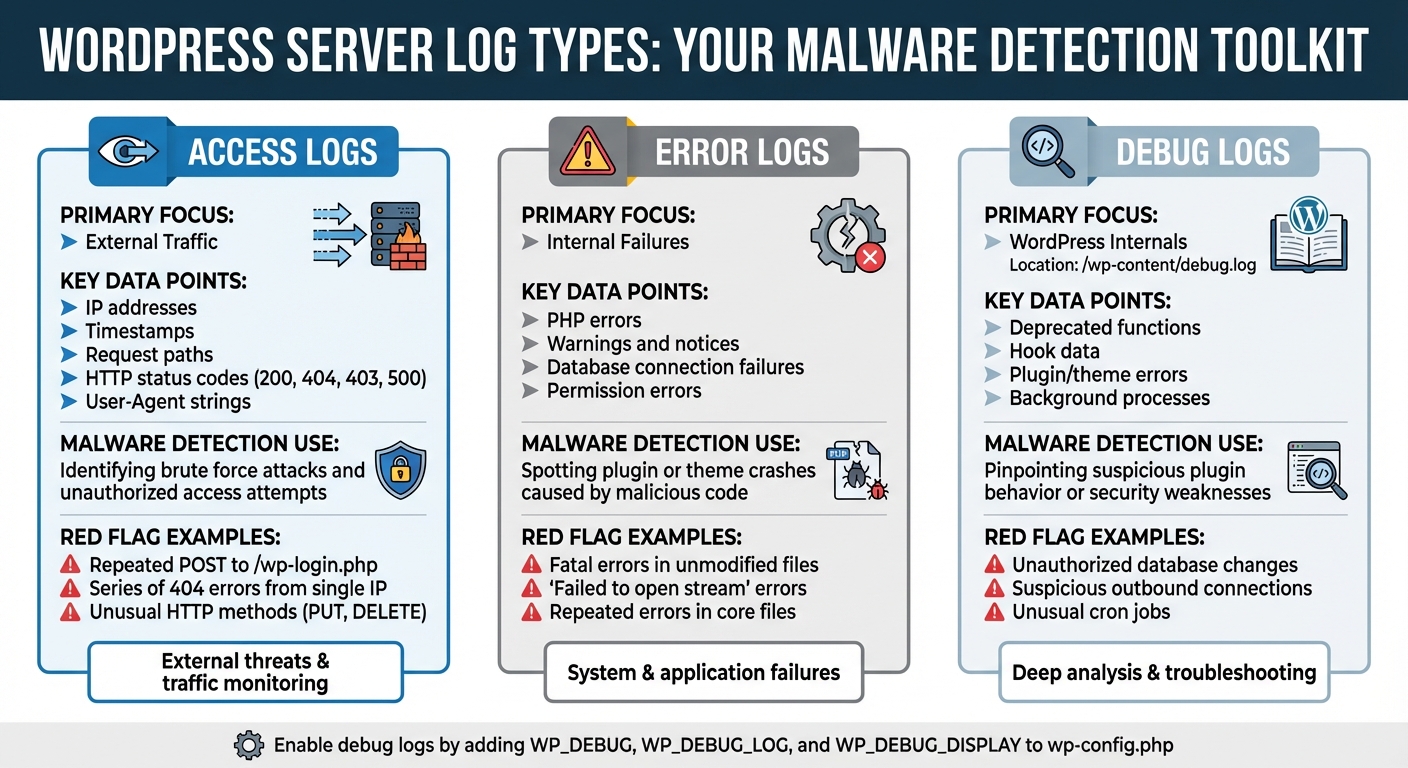
WordPress Server Log Types Comparison for Malware Detection
WordPress server logs are an essential tool for monitoring your site’s activity and identifying potential security issues, such as malware intrusions. There are three main types of logs, each serving a unique purpose in tracking and diagnosing problems.
Access logs capture every request made to your server, whether it’s from genuine visitors, search engine bots, or potential attackers. These logs include details like IP addresses, timestamps, request paths, HTTP status codes (e.g., 200 for success, 404 for not found), and the User-Agent string.
Error logs focus on server-side issues, such as PHP errors and permissions problems. When malware attempts to exploit vulnerabilities or execute harmful code, it often triggers these errors. For instance, you might see messages like "Failed to open stream: Permission denied", which can indicate unauthorized attempts to access restricted directories.
Debug logs, specific to WordPress, provide insights into the platform’s internal processes. To enable them, you need to modify your wp-config.php file by adding the following lines:
define( 'WP_DEBUG', true ); define( 'WP_DEBUG_LOG', true ); define( 'WP_DEBUG_DISPLAY', false ); Once activated, these logs track plugin actions, theme behaviors, and deprecated functions, offering a closer look at potential vulnerabilities or suspicious activity. The resulting debug.log file is stored in the /wp-content/ directory.
| Log Type | Primary Focus | Key Data Points | Malware Detection Use Case |
|---|---|---|---|
| Access Logs | External Traffic | IP address, request path, status codes, User-Agent | Identifying brute force attacks and unauthorized access attempts. |
| Error Logs | Internal Failures | PHP errors, warnings, notices | Spotting plugin or theme crashes caused by malicious code. |
| Debug Logs | WordPress Internals | Deprecated functions, hook data, plugin/theme errors | Pinpointing suspicious plugin behavior or security weaknesses. |
Access Logs: Monitoring Site Traffic
Access logs act as a comprehensive record of all interactions with your server. Each log entry includes the IP address, timestamp, file path, HTTP method (GET or POST), status code, and User-Agent. This helps you distinguish between legitimate visitors, search engine crawlers, and automated scripts.
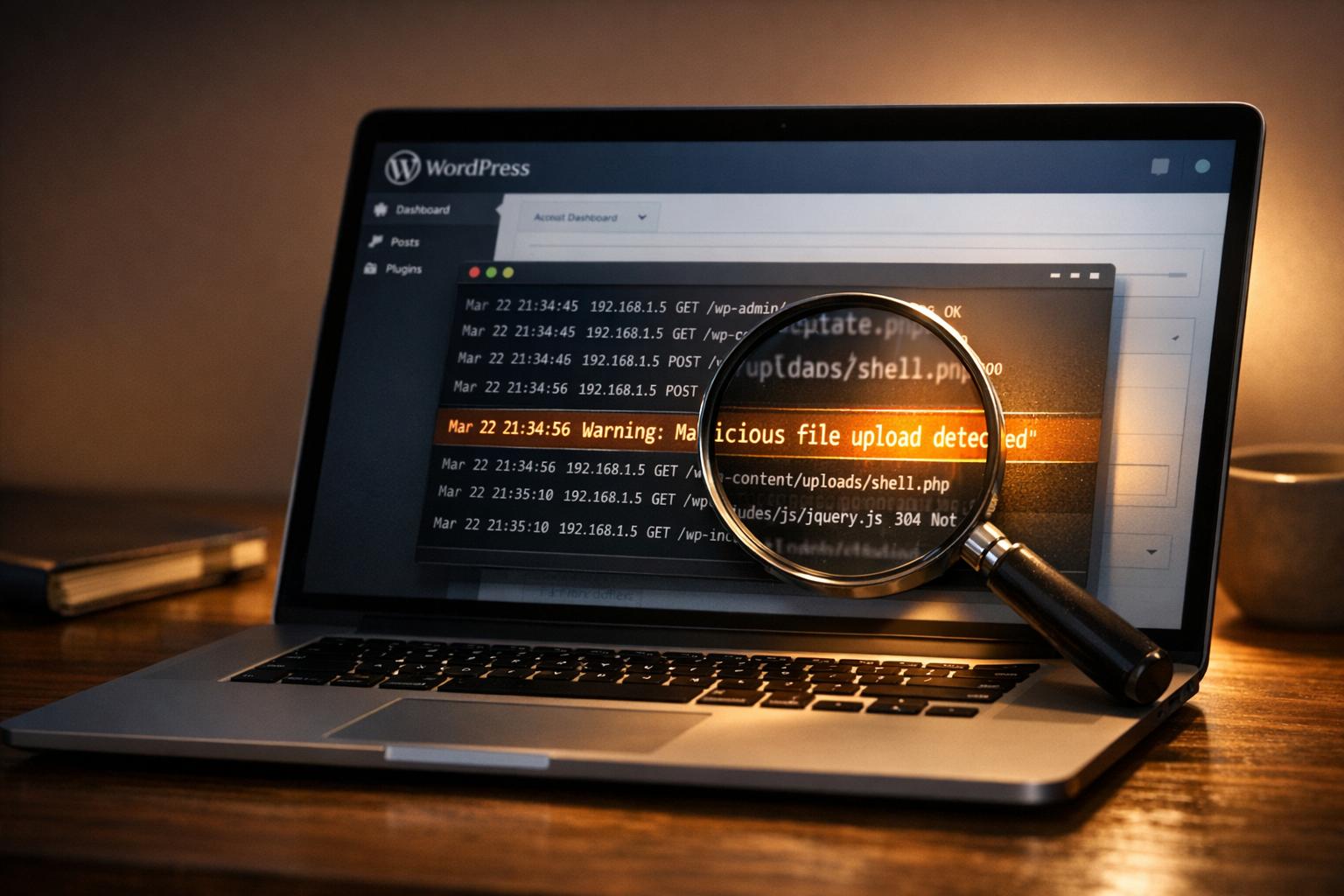
For malware detection, access logs are your first line of defense. For example, repeated POST requests to /wp-login.php from the same IP could indicate a brute force attack. Similarly, a series of 404 errors from a single source might suggest a bot scanning for vulnerabilities, like outdated plugins or misconfigured directories.
Status codes offer further clues: 200 indicates a successful request, 403 means access was denied, 404 shows a missing file, and 500 suggests an internal server error, possibly caused by failed malicious code. By analyzing these patterns, you can detect and mitigate threats before they escalate.
Error Logs: Detecting Internal Issues
Unlike access logs, error logs focus on internal server problems. They capture PHP errors, syntax issues, database connection failures, and permission errors, all of which are timestamped and linked to specific files. These logs are particularly useful for identifying malware, as malicious scripts often trigger errors when they fail to execute properly.
Keep an eye out for fatal or parse errors in files that haven’t been recently modified. For instance, repeated errors in a core WordPress file or a rarely updated plugin could signal a code injection attempt. Similarly, "Failed to open stream" errors might indicate that a malicious script is trying to access directories without the necessary permissions.
Debug Logs: Uncovering WordPress-Specific Issues
Debug logs provide a deep dive into WordPress’s internal workings. Once enabled through your wp-config.php file, these logs create a debug.log file in the /wp-content/ directory. They track WordPress hooks, plugin actions, and theme behaviors, offering insights that might not appear in other logs.
"WordPress logs are not just a troubleshooting asset; they form an integral part of your website’s security strategy. Detailed logs can be the key to detecting, preventing, and understanding security breaches." – Anurag Changmai, Editor and Writer, MalCare
Debug logs are particularly helpful for identifying unusual plugin or theme behavior. For instance, if a plugin is making unauthorized database changes or outbound connections, these logs can reveal the activity. They also capture deprecated function calls and suspicious background processes, such as cron jobs, that could be exploited by malware.
To ensure security on live sites, set WP_DEBUG_DISPLAY to false. This prevents error messages from being visible to visitors, which could inadvertently expose vulnerabilities. Together, access, error, and debug logs provide a comprehensive view of your site’s activity, helping you stay ahead of potential threats.
How to Analyze Server Logs for Malware
Finding and Opening Your Server Logs
To start tracking down malware, you first need to locate your server logs. If you’re using WordPress, debug logs are stored in the /wp-content/debug.log file. On the other hand, server access and error logs – generated by Apache or Nginx – are kept in different locations depending on your hosting setup.
You can access these logs through your hosting control panel, FTP, or SSH. For real-time monitoring, use a command like tail -f ~/logs/AccessLog, which lets you see requests as they happen. This is especially useful for catching active malware probes in the act.
If the debug.log file is missing, you can enable WordPress debug logging in your wp-config.php file. Once you’ve got your logs open, it’s time to dig in and look for signs of malicious activity.
Spotting Malware Indicators in Log Files
Certain patterns in your logs can act like red flags for malware. For example, repeated POST requests that trigger 401 or 403 errors often indicate brute force attacks. Unlike regular users who might fail a login once or twice, malware tools can bombard your site with hundreds of attempts.
Clusters of 404 errors targeting files like /.env, /phpinfo.php, or /wp-config.php are another warning sign. These files should never be publicly accessible, so if you see probes for them, someone is likely scanning your site for vulnerabilities.
Unusual HTTP methods like PUT or DELETE on public endpoints can also spell trouble, as can malicious query strings. Look out for SQL injection attempts (e.g., ' OR '1'='1) or path traversal sequences (e.g., ../). Large response sizes in your logs might point to data theft or resource-draining downloads.
Pay attention to spikes in 500-series errors (Internal Server Errors). These can indicate that a malicious script is crashing your site or that an attack has partially succeeded. Errors in files you haven’t recently touched could mean someone has injected malicious code. Timing can also give you clues – automated bot traffic often follows consistent intervals, while human activity is more random.
Using Command-Line Tools to Search Logs
Once you’ve identified suspicious activity, command-line tools can make your search for malware signatures much more efficient. The grep command is especially handy for pinpointing specific patterns. For instance, to find all POST requests in your access log, you can run:
grep "POST" AccessLog If you want to monitor login attempts in real-time, combine it with tail:
tail -f ~/logs/AccessLog | grep "POST" To count how many times a specific activity occurred, pipe the results through wc -l. For example:
grep "wp-login.php" AccessLog | wc -l This will give you the total number of login attempts. If you suspect a particular IP address, you can filter for its activity, like this:
grep "192.168.1.1" AccessLog | grep "404" Even compressed log files can be searched without unpacking them first. Use zcat for this:
zcat AccessLog-20240101.gz | grep "404" To locate recently modified files that might contain injected code, the find command is invaluable. For example:
find /public_html -name "*.php" -mmin -60 This lists all PHP files changed in the last hour. If you’re hunting for common malware signatures across your WordPress installation, try:
grep -r "eval(" /public_html or
grep -r "base64_decode(" /public_html These, along with functions like shell_exec() and gzinflate(), are often exploited by attackers to hide malicious code.
For more advanced filtering, awk is another powerful tool. Want to extract IPs triggering 404 errors? Use:
awk '$9 == "404" {print $1}' AccessLog You can also use awk to filter logs by specific usernames or time ranges, giving you even more control over your analysis.
"Logging mechanisms and the ability to track user activities are critical in preventing, detecting, or minimizing the impact of a data compromise." – PCI DSS Compliance Regulations
sbb-itb-976b402
Security Plugins That Help with Log Analysis
Automated Log Monitoring in Security Plugins
Security plugins make log analysis easier by automating the process, which is crucial for detecting malware and other threats. These tools rely on sensors to monitor user and system activities, helping to identify potential breaches.
When unusual behavior is detected – like unauthorized file changes or suspicious login attempts – these plugins send instant alerts through email, SMS, or platforms like Slack. For example, WP Activity Log tracks over 300 types of site changes and boasts more than 300,000 installations. Meanwhile, Wordfence employs a Threat Defense Feed that updates malware signatures and firewall rules in real time. This ensures malicious code is blocked before it can reach your site.
"If a hacker hacks your website, an activity log helps you throughout the recovery and clean-up process. With a detailed log of everything your attacker did you can easily spot the changes and infections." – Melapress
Premium security plugins go even further by enhancing log integrity. They can mirror logs to external systems like AWS CloudWatch or Papertrail, providing live insights into bot activity and exploit attempts. This ensures forensic data remains accessible even if your local database is compromised. Using these automated tools alongside broader security measures creates a stronger defense for your site.
Combining Log Analysis with Other Security Measures
Automated alerts are just one piece of the puzzle. For the best results, log analysis should be part of a multi-layered security approach. Activity logs record what happened and when, but their full potential is unlocked when paired with tools like malware scanners, firewalls, and routine updates.
For instance, Wordfence scans for over 44,000 known malware variants and includes file integrity monitoring. If a core file is altered, the activity log can pinpoint who made the change and when. Similarly, if your firewall blocks a suspicious IP address, reviewing access logs might reveal that the IP was probing for vulnerabilities like "/.env" or "/wp-config.php" files.
To manage alerts effectively, set filters to notify you only for "Critical" or "Warning" events. Monitoring failed login attempts can help identify brute-force attacks early, while automated IP blocking can stop them in their tracks. Finally, configuring log retention periods between 60 and 180 days strikes a balance between maintaining forensic data and optimizing database performance.
"WordPress security requires a team of dedicated analysts researching the latest malware variants and WordPress exploits, turning them into firewall rules and malware signatures, and releasing those to customers in real-time." – Wordfence
Removing Malware After Detection
Once malware is detected through server logs, the next step is to carefully remove it from your site.
Backing Up and Isolating Infected Files
Before making any changes to your site, create a full backup of all files and your database. This precaution ensures you can restore your site if anything goes wrong during the cleanup process. Use FTP or SFTP to manually download your files, and export your database using phpMyAdmin or SSH. If you have SSH access, you can compress your files into a backup with the following command:
zip -r backup.zip . After backing up, restrict access to your site immediately to prevent the malware from spreading. You can do this by editing your .htaccess file to block all traffic except from your own IP address. Add these lines:
order deny,allow deny from all allow from [Your IP] If your server hosts multiple websites, isolate each one into its own environment to prevent cross-site contamination. Instead of deleting potentially malicious files right away, move them to a non-executable folder for further inspection. Some files may be legitimate but altered by attackers. Additionally, check for symbolic links (symlinks) that hackers might use to access sensitive directories. You can remove these links by running:
find . -type l -exec unlink {} ; Once your backups are secure and infected files are isolated, you can begin removing the malicious code.
Deleting Infected Code and Files
For compromised core files, delete them and replace them with fresh versions from WordPress.org. When it comes to plugins and themes, don’t waste time trying to edit individual files. Simply delete the entire directory and reinstall clean versions from the official repository.
"You can usually delete anything in the wp-content/plugins/ directory and you won’t lose data or break your site… WordPress will automatically detect that you have deleted a plugin and will disable it."
– Mark Maunder, Founder, Wordfence
Next, search your database for malicious code. Look for suspicious PHP functions like eval or base64_decode in tables such as wp_options and wp_posts. Also, scan your /wp-content/uploads/ folder for PHP files, as this directory should primarily contain media files, not executable code. Use this command to locate PHP files:
find . -name "*.php" After cleanup, update all passwords – including FTP, SSH, database, and admin accounts. Update the WordPress security salts in your wp-config.php file to invalidate any active sessions. Finally, ensure proper file permissions: set folders to 755 and files to 644, and avoid overly permissive settings like 777.
If the malware persists, it may be time to call in an expert.
Getting Professional Help for Malware Removal
Some malware infections are too complex to handle manually. If you’re dealing with persistent backdoors, extensive database damage, or issues involving sensitive user information, hiring a professional can save time and ensure thorough cleanup. Experts are skilled at identifying hidden vulnerabilities that automated tools might miss, and they can implement advanced server-level protections to prevent future attacks.
"If you have a mission-critical website and need it cleaned immediately… our 24-hour incident response team will start work within 1 hour."
– Mark Maunder, Founder, Wordfence
Professional WordPress malware removal services typically start at $150 per site. WP Support Specialists offers comprehensive malware removal services, including deep manual cleanups, blacklist removal, and long-term site security. If your hosting provider has suspended your account due to malware, their detailed cleanup reports can help reinstate your account quickly.
Conclusion
Keeping a close eye on your logs is one of the best ways to protect your WordPress site from malware. Regularly reviewing access, error, and activity logs can help you detect suspicious behavior – like brute-force login attempts or requests targeting sensitive directories that don’t exist – before a full-blown breach occurs. As highlighted in the PCI DSS compliance document: "Logging mechanisms and the ability to track user activities are critical in preventing, detecting, or minimizing the impact of a data compromise."
Logs also play a crucial role after an attack. They can show how hackers accessed your site, which files were affected, and what vulnerabilities need fixing. Robert Abela, Founder and CEO of Melapress, underscores this point:
"The purpose of analyzing the logs in a post-hack attack is primarily to find out how the users gained access to your website and close that security hole. Not doing this could result in your site being hacked again."
That said, reviewing logs can be time-consuming and technically demanding, especially for site administrators who may not have the expertise to interpret complex data. This is where automated tools and professional services come into play. Security plugins can alert you to threats in real time, while experts can dive deeper into the logs, identify vulnerabilities, and respond quickly to stop further damage.
For a more robust approach, consider working with professionals like WP Support Specialists. Their malware removal services include manual cleanups, thorough log analysis, and ongoing monitoring to ensure your site stays clean. With maintenance plans starting at $75 per month, they offer 24/7 uptime monitoring, regular backups, and expert assistance whenever you need it.
Whether you choose to manage log monitoring yourself or enlist expert help, staying proactive is key to keeping your WordPress site safe and your business running smoothly.
FAQs
How can I detect suspicious activity in WordPress server logs?
To spot suspicious activity in your WordPress server logs, start by checking essential files like the access log, error log, and debug log (if it’s enabled). These logs keep track of site requests, errors, and warnings, making them key tools for identifying potential issues.
Here’s what to watch for:
- Unusual IP addresses making repeated requests.
- Failed login attempts targeting files like
wp-login.phporxmlrpc.php. - Requests for unexpected or non-existent files, such as unknown
.phpscripts. - A spike in 404 errors, which could signal someone probing for vulnerabilities.
In error logs, pay close attention to warnings like “failed to open stream” or “include(): Failed opening,” as they might indicate attempts to load hidden or malicious files. Cross-reference log timestamps (formatted as MM/DD/YYYY HH:MM:SS) with any odd site behavior, such as downtime or unexpected redirects, to help trace the root cause.
When you find suspicious entries, document details like IP addresses and timestamps. Then, take action – block problematic IPs or run a malware scan. Regularly reviewing logs can help you catch potential threats early and safeguard your WordPress site from harm.
What should I do first if I think my WordPress site has been infected with malware?
If you think your WordPress site might be infected with malware, the first step is to verify the warning signs. Pay attention to things like strange pop-ups, unfamiliar user accounts, sluggish site performance, or alerts from search engines.
Once you’ve identified an issue, back up your website right away. Make sure to save copies of both your files and database. After that, use a reliable malware scanner to detect any threats lurking in your system. It’s also a good idea to check your server and activity logs for anything out of the ordinary, like unauthorized login attempts or unexpected changes to files.
To lock things down, update all your admin passwords to block any further unauthorized access. If you’re feeling stuck or need extra assistance, don’t hesitate to contact professionals who specialize in WordPress security and malware cleanup.
What are the best command-line tools to analyze server logs for malware in WordPress?
When it comes to analyzing server logs for signs of malware, some of the most effective tools are standard command-line utilities like cat, grep, tail, and awk. These tools are great for filtering and reviewing access and error logs, making it easier to spot unusual or suspicious activity.
If you’re working with WordPress, a tool like WPScan can be particularly helpful. It connects log data with known WordPress vulnerabilities, giving you a clearer picture of potential threats. By combining these tools, you can quickly identify possible malware infections and take steps to protect your site.