

Switching between Tutor LMS and LearnPress can be tricky due to their distinct database structures and feature sets. Both are popular WordPress LMS plugins, but their differences in course building, quiz systems, and monetization setups create hurdles during migration. Here’s what you need to know:
- Tutor LMS: Features a frontend drag-and-drop course builder, built-in certificate tools, and advanced quiz types. It integrates smoothly with WooCommerce for monetization.
- LearnPress: Relies on a backend-heavy setup with add-ons for functionality like certificates and payment gateways, making it more modular but less streamlined.
Key Migration Challenges:
- Database Differences: Mapping course data, lessons, quizzes, and user progress is complex due to structural mismatches.
- Quizzes: Tutor LMS supports advanced question types and settings that LearnPress lacks, requiring manual adjustments.
- Certificates: Tutor LMS has built-in tools, while LearnPress relies on paid add-ons, complicating certificate transfers.
- Monetization: WooCommerce integration varies, requiring reconfiguration of product links and pricing.
- User Progress: Tools can transfer progress, but some features may need manual tweaks.
Best Practices:
- Use staging sites to test migrations.
- Create full backups to prevent data loss.
- Ensure both platforms and add-ons are updated to compatible versions.
- Professional assistance can simplify the process, especially for large datasets or complex setups.
Quick Comparison:
| Feature | Tutor LMS | LearnPress |
|---|---|---|
| Course Builder | Frontend drag-and-drop | Backend-focused (some frontend) |
| Quiz Features | Advanced (e.g., Image Matching) | Basic (add-ons for advanced types) |
| Certificates | Built-in | Paid add-on required |
| Monetization | WooCommerce, native integration | Add-ons for payment gateways |
| Migration Tool | Available, requires setup | Limited compatibility |
Migrating between these platforms requires careful planning, technical know-how, and sometimes professional help. Without proper preparation, you risk losing data or disrupting your site.
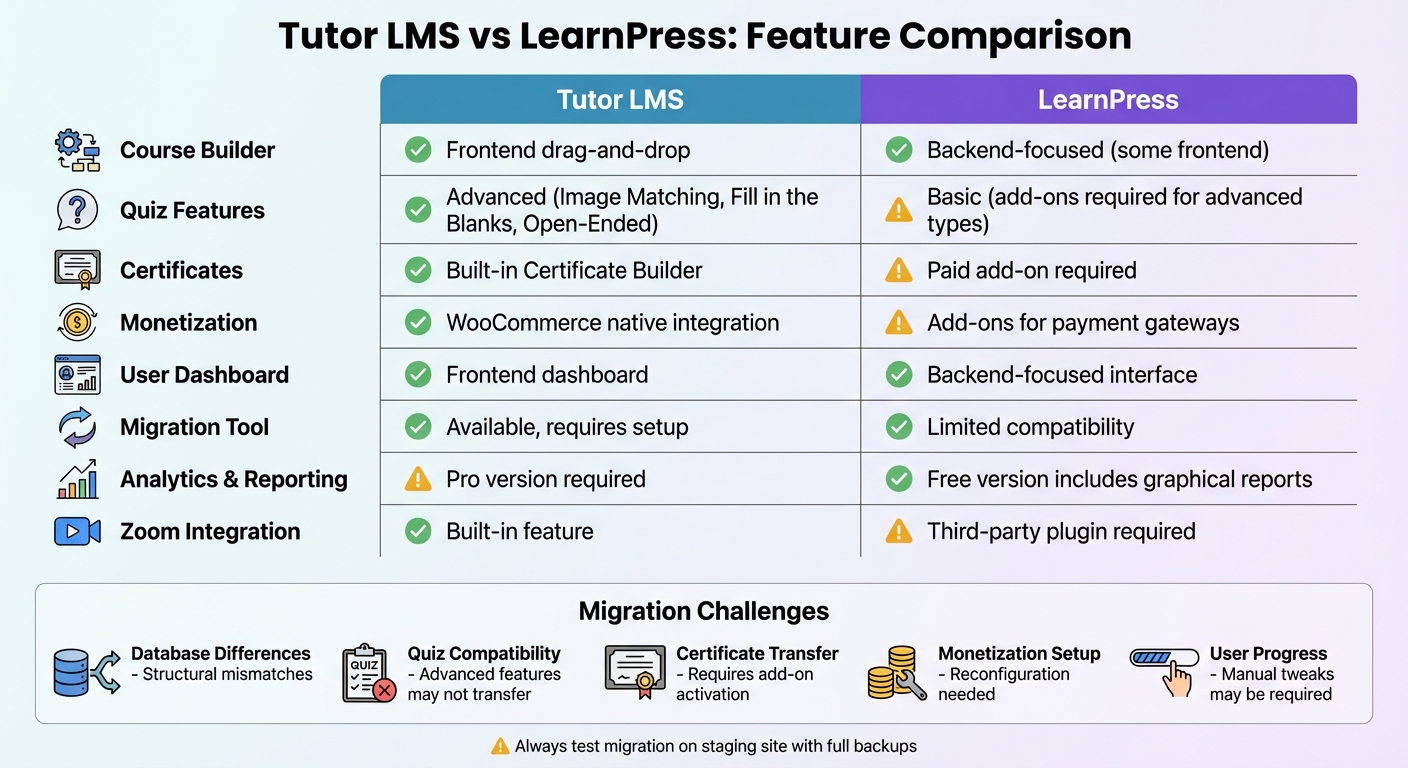
Tutor LMS vs LearnPress Feature Comparison Chart
Main Structural Differences Between Tutor LMS and LearnPress
How Courses, Lessons, and Quizzes Are Structured
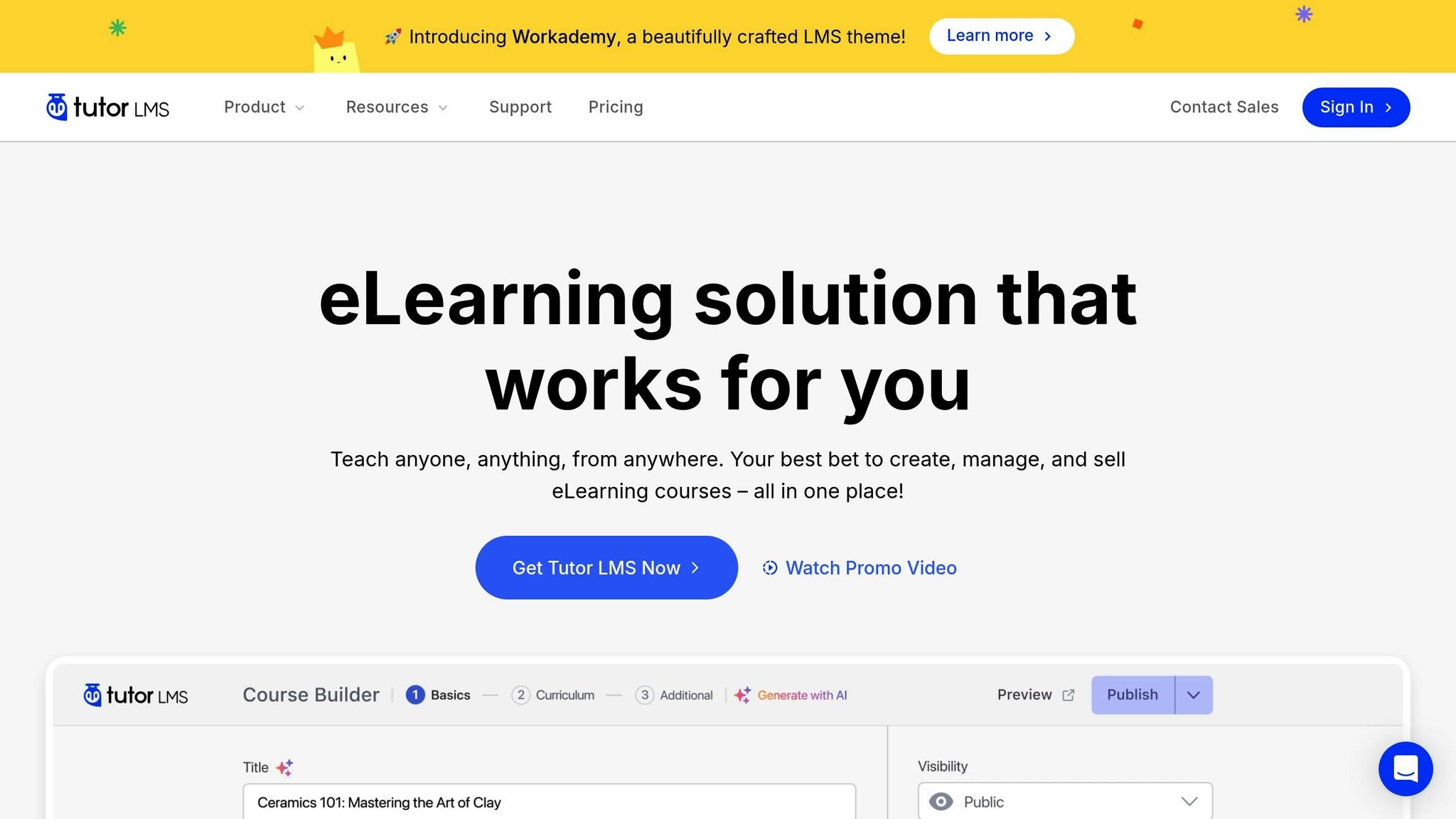
Tutor LMS uses a frontend drag-and-drop builder, making course creation more visual and user-friendly. In contrast, LearnPress primarily relies on a backend structure, though it has recently introduced some frontend options to improve usability.
The quiz systems also differ quite a bit. Tutor LMS offers advanced features like point deductions, retake limits, and unique question types such as Image Matching and Matching. On the other hand, LearnPress keeps its free version more basic, requiring paid add-ons for many quiz-related features. Migration tools help map essential elements like courses, sections, lessons, quizzes, questions, and even user progress.
Additionally, Tutor LMS automatically generates a WooCommerce product for each course. This means you’ll need to set up your preferred eCommerce platform before diving into course monetization.
While structuring content is crucial, handling enrollments and user roles introduces its own set of challenges during migration.
Enrollment and User Role Management
Tutor LMS provides a frontend dashboard for managing courses, while LearnPress centralizes everything in its backend interface.
"Tutor LMS excels… for multi-instructor platforms… enabling instructors to create, manage, and grade courses directly from the public-facing side of the website." – LearnPress Blog
When it comes to enrollment tracking, LearnPress offers graphical reports on student enrollments and order history – even in its free version. Tutor LMS, however, provides enrollment management features and student lists, but access to detailed analytics and reporting requires upgrading to the Pro version.
For those migrating between platforms, the Tutor LMS Migration Tool simplifies the process by transferring student and instructor profiles, course enrollment data, sales records, and order history. However, this only works smoothly if monetization settings are aligned on both platforms.
Migrating supplementary data like certificates and analytics can also pose additional hurdles.
Certificates, Analytics, and Add-On Dependencies
Tutor LMS includes a built-in Certificate Builder, making it easier to create and manage certificates. LearnPress, on the other hand, requires a paid add-on for certificate functionality. During migration, the Tutor LMS Migration Tool can auto-generate certificates, but only if the Certificate add-on is active.
Both platforms rely on external plugins like WooCommerce or Easy Digital Downloads for monetization. Tutor LMS integrates many features directly into its ecosystem, such as Zoom and Quiz Export/Import. LearnPress, however, often depends on third-party plugins for similar functionalities. This reliance on external tools can complicate migration, as direct data mapping isn’t always possible for these dependencies.
Tutor LMS to LearnPress Migration Challenges
Mapping Course and Lesson Structures
Tutor LMS structures its courses using Sections, which serve as containers for lessons, quizzes, and assignments, all arranged in a hierarchical format. When transitioning to LearnPress, maintaining this hierarchy is crucial. While LearnPress also employs a section-based structure, transferring course data requires careful mapping to ensure that parent-child relationships remain intact.
A key hurdle lies in migrating course metadata. Tutor LMS includes features like difficulty levels, target audience details, and introductory course videos. Some of this metadata may not have direct counterparts in LearnPress, necessitating manual adjustments after the migration. The LearnPress Export Import plugin (version 4.0.7 or higher) facilitates the transfer of core content, but it’s important to confirm compatibility – LearnPress v4.2.7.8 or newer is required for the migration tool to function properly.
This brings us to the challenges of transferring quiz data and tracking user progress.
Migrating Quiz Data and User Progress
Tutor LMS offers a robust quiz builder with advanced question types such as Image Matching, Fill in the Blanks, and Open-Ended questions. It also includes features like point deductions for incorrect answers and specific retake limits. However, LearnPress lacks native support for some of these advanced question types, meaning quizzes that rely on them may require manual adjustments or additional plugins.
The migration tool does transfer user learning progress, ensuring students retain their current course statuses. Quiz questions are also migrated in their original sequence. To avoid surprises, it’s wise to audit your Tutor LMS quizzes beforehand to identify any features that might need manual tweaking or supplemental add-ons in LearnPress.
Handling Certificates, Monetization, and Add-On Features
Beyond transferring core content, elements like certificates, monetization settings, and add-on features demand extra attention. The LearnPress migration tool focuses on core elements – courses, sections, course items, questions, and user progress – but does not handle certificates, sales data, or complex add-on configurations. For example, Tutor LMS Pro’s built-in certificate builder, which includes dynamic elements, will require manual recreation in LearnPress, as LearnPress relies on a separate add-on for certificates.
Monetization settings pose similar challenges. Tutor LMS integrates seamlessly with popular eCommerce platforms like WooCommerce and Easy Digital Downloads or uses its native eCommerce engine. LearnPress, on the other hand, operates with its own framework and often requires add-ons for course packages and payment integrations. Post-migration, you’ll need to reconfigure product links and pricing structures to align with LearnPress. A good example of this difference is Zoom integration – Tutor LMS includes Zoom as a built-in feature, whereas LearnPress typically requires third-party plugins to achieve the same functionality.
LearnPress to Tutor LMS Migration Challenges
Converting Course and Lesson Dependencies
Before diving into the migration, make sure all the necessary Tutor LMS add-ons are installed and activated. For instance, if your LearnPress setup uses a separate plugin for certificates, you’ll need to enable Tutor LMS’s Certificate Builder beforehand. This ensures the migration tool can auto-generate certificates based on your existing course completion data.
One major difference between the two platforms is how courses are built. Tutor LMS offers a drag-and-drop course builder, which is more intuitive compared to LearnPress’s backend interface. After migrating your courses, you might want to tweak the layouts to take full advantage of these enhanced features. Don’t forget to address any interactive elements, like quizzes and gradebooks, during this process.
Migrating Quizzes, Gradebooks, and Analytics
Once your course data is aligned, the next hurdle is transferring interactive elements and records. The migration tool can move quiz questions and attempts from LearnPress to Tutor LMS. However, Tutor LMS includes features that LearnPress doesn’t support, such as point deductions for incorrect answers, randomizing questions, and setting specific retake limits. You’ll need to manually adjust quizzes after the migration to incorporate these advanced options.
In November 2021, a WordPress.org user shared their experience, noting that the migration tool imported all their LearnPress courses in just minutes. The only manual adjustment they had to make was resizing featured images to fit Tutor LMS’s theme. By September 2022, Themeum released version 2.1.0 of the Migration Tool, which expanded its functionality to include LearnPress eCommerce order records and auto-generate certificates based on previous course completions.
"It only took a few minutes to take all of my LearnPress courses and import them into Tutor LMS… perfectly. The only tweak after importing was resizing the featured images."
– Verified User Review, WordPress.org
The migration tool also handles student progress, enrollment records, and completion statuses automatically. It ensures database integrity during the transition, minimizing the risk of errors that could disrupt gradebooks. However, keep in mind that the tool deletes the original LearnPress courses from your database once the migration is complete. This makes creating a full backup of your site a must before starting.
Rebuilding Enrollments, Payments, and Certificates
After successfully transferring your data, the final step is to reconfigure monetization and enrollment records. For this, you’ll need to set up Tutor LMS’s monetization system – whether it’s WooCommerce or Easy Digital Downloads – before migrating. Tutor LMS automatically creates WooCommerce products for your courses, so your eCommerce platform must be ready to handle the incoming data.
The migration tool also moves enrollment records, sales orders, course reviews, and instructor profiles. Certificates, however, aren’t simply copied over as static files. Instead, Tutor LMS generates new certificates for students who meet the eligibility criteria during the migration.
"To transfer all data correctly, you must install and set up all of the necessary Tutor LMS add-ons and settings beforehand."
– Themeum Documentation
To avoid surprises, always test the migration on a staging site first. This allows you to verify that enrollments, payment records, and certificates have transferred correctly before making changes to your live site. While the migration tool enjoys a perfect 5/5 rating on WordPress.org, taking these precautions ensures your critical student data is safeguarded throughout the process.
sbb-itb-976b402
Best Practices for LMS Migration and Risk Reduction
Preparing a Staging Environment and Backups
Before starting your migration, it’s crucial to create a full backup of your website files and database. This step is essential because the Tutor LMS Migration Tool might delete original course data during the process. Without a backup, you could face permanent data loss.
Next, set up a staging environment – a private replica of your live site. This allows you to safely test the migration without disrupting your active users. Make sure your staging site meets all the necessary version requirements: Tutor LMS v3.6.0+, LearnPress v4.0+, and the Migration Tool v2.3.1+. Additionally, activate and configure any relevant add-ons before the migration. For instance, if your courses include certificates, enable the Certificate Builder. If you’re selling courses, ensure that WooCommerce or Easy Digital Downloads is properly set up. These configurations are necessary to map data like sales orders and certificates correctly.
Once you’ve backed up your site and prepared the staging environment, you’re ready to begin the migration process. Be sure to monitor progress and verify data integrity along the way.
Testing, Validation, and Incremental Synchronization
Migration tools typically provide real-time progress updates for key datasets such as Courses, Sales Data, and Reviews, helping you quickly detect any issues. After the migration is complete, manually verify the data by reviewing Courses, Enrollments, and Reviews in the admin dashboard. Use the "View Report" feature to check for errors, and if needed, restart the process using the "Clear Migrated Data" option. For more granular control, you can also opt for the manual XML export/import method.
Using Professional Support for Complex Migrations
If your migration involves complex elements like eCommerce data, custom add-ons, or large student databases, it’s wise to seek professional assistance. Experts can handle strict version compatibility requirements and troubleshoot issues like database permission errors that might disrupt automated migrations. They also ensure that monetization tools, such as payment systems, are correctly configured before the migration starts, reducing the risk of losing or misattributing financial data.
One reliable option is WP Support Specialists (https://wpsupportspecialists.com). They offer a range of WordPress migration services, including custom plugin development and emergency fixes for challenging LMS transitions. Their team manages all technical requirements, conducts migrations in a staging environment, and verifies data accuracy before making your site live. For agencies handling multiple client migrations, they also provide white-label partnership services. WP Support Specialists tailor their support plans to meet the specific needs of complex LMS migrations.
Conclusion
Key Takeaways for Tutor LMS and LearnPress Migration
Switching between Tutor LMS and LearnPress requires careful planning and attention to detail. Since these platforms manage courses, lessons, and quizzes differently, data transfer isn’t always straightforward. For instance, the Tutor LMS Migration Tool removes LearnPress courses once the migration is complete, so creating backups beforehand is absolutely critical. Additionally, migrating to Tutor LMS requires version 3.2.0 or higher, along with Migration Tool version 2.2.2 or later. Keep in mind that certain features, like certificates, won’t transfer unless the appropriate add-ons are activated beforehand. Testing the migration in a staging environment is highly recommended to identify and resolve issues before they impact your live website. It’s worth noting that 83% of data migration projects either fail, go over budget, or disrupt operations, which highlights the importance of thorough preparation.
These challenges underscore why having expert guidance can make a significant difference.
The Value of Expert Assistance
While migration tools are available for both platforms, they often only handle basic data. More complex elements – like custom eCommerce setups, certificate generation, or specific add-on configurations – frequently require manual adjustments. LearnPress has faced criticism for its limited customer support, which can leave users struggling to resolve technical issues during migration.
This is where WP Support Specialists (https://wpsupportspecialists.com) can step in. They offer professional services that include version checks, staging migrations, and data validation to ensure a smooth transition. For agencies managing multiple client websites, they even provide white-label solutions, such as custom plugin development and emergency troubleshooting, making them a reliable option when automated tools fall short.
🚀 Migrate from LearnPress to Tutor LMS
FAQs
What are the key differences in quiz functionality between Tutor LMS and LearnPress?
When it comes to quiz-building tools, Tutor LMS and LearnPress each bring something different to the table. Tutor LMS stands out with its intuitive interface and advanced options, such as setting time limits, randomizing questions, and using question banks to create dynamic quizzes. On the other hand, LearnPress offers basic quiz functionalities but often depends on extra plugins to unlock more complex features.
If you’re considering switching between these platforms, take the time to assess your specific requirements and any potential challenges that could arise during the migration process.
What steps should I take to ensure a smooth migration of user progress between Tutor LMS and LearnPress?
To transfer user progress seamlessly between Tutor LMS and LearnPress, here’s what you need to do:
- Backup your site: Always start by creating a full backup of your WordPress files and database. This ensures you can restore your site if something goes wrong during the migration.
- Check plugin compatibility: Double-check that both platforms are running versions of their migration tools that work well together. This step helps prevent avoidable errors.
- Install the right migration tool: Depending on whether you’re moving to Tutor LMS or LearnPress, install the appropriate migration plugin (like the Tutor LMS Migration Tool or LearnPress Data Migration Tool).
- Run the migration process: Use the migration tool’s interface to transfer user progress data. Keep your site live while the migration takes place to avoid interruptions for users.
- Verify the data transfer: After the migration is complete, review the imported data. Test a few user accounts to make sure everything has been transferred accurately.
If you run into problems or want professional help, you can always turn to experts like WP Support Specialists. They can handle the migration for you, ensuring all user progress data is safely preserved.
How can I prepare for migrating from LearnPress to Tutor LMS?
To switch from LearnPress to Tutor LMS without a hitch, here’s what you need to do:
- Back Up Your Site: Before you start, create a full backup of your database and files. This step is crucial to protect your data in case anything goes wrong during the process.
- Verify System Requirements: Ensure your WordPress setup is compatible with Tutor LMS. You’ll need PHP 7.4 (or higher) and MySQL 5.6 (or higher) to proceed.
- Install Tutor LMS and the Migration Tool: Add the latest version of Tutor LMS (v3.8 or newer) to your site. Then, install and activate the "Tutor LMS – Migration Tool" plugin to get ready for the transfer.
- Run the Migration: Navigate to the Migration Tool in your WordPress dashboard. Use it to transfer all your courses, lessons, quizzes, and user data from LearnPress to Tutor LMS.
- Review and Test: Once the migration is complete, go through your content thoroughly. Test every feature to confirm that everything has been transferred and is functioning as expected.
If you’d rather not tackle this on your own, WP Support Specialists can provide professional migration services. They’ll handle the process for you, reducing downtime and ensuring everything runs smoothly.